
What you will need
- Sales tax enabled in QuickBooks Online.
- A Bank-type account in your QuickBooks Chart of Accounts. Titus uses this as the deposit account for synced payouts and refunds.
- A fee account in your Chart of Accounts (typically an Expense account). Titus uses this to record processing fees.
Sales Tax Handling
-
To sync invoice sales tax from Titus, Sales Tax must be enabled in QuickBooks Online.
-
For Titus-synced invoices, Titus sends the invoice tax amount as a transaction-level tax override in QuickBooks.
-
If a different tax rate is configured in QuickBooks, the Titus-synced tax amount still determines the invoice tax total.
- Important: If tax is edited on a Titus-synced QuickBooks invoice, its total will no longer match the Titus invoice total, which can lead to inconsistent payment status in QuickBooks.
Connecting to QuickBooks
- In Titus, go to Settings → Integrations.
- Find QuickBooks and click Connect.
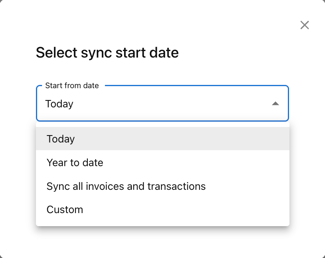
- Choose your Start from date.
- Titus will sync invoices and related transactions from this date forward.
- Please note. Turning on the sync may create duplicate customer records for customers previously entered manually. Be sure to consider this when choosing a start from date.
- Complete the QuickBooks authorization flow.
- Back in Titus, select your QuickBooks accounts:
- Deposit account: the Bank account where you track incoming deposits/refunds.
- Fee account: the account (usually Expense) where you track Titus processing fees.
Note: If you have any connection issues with QuickBooks, see FAQs below for troubleshooting.
After Connecting
- QuickBooks will appear as Connected in your Integrations settings.
- On the Invoices page, each invoice will display its QB Synced in the ID column
- Titus starts backfilling Invoices and Payments from your selected start date
- Payout and refund backfilling begins once your QuickBooks deposit and fee accounts are configured.
- In invoice creation, Browse catalog now includes a QuickBooks catalog section so you can add QuickBooks products/services as invoice line items.
What is synced over
| Titus record | Created as in QuickBooks | Notes |
|---|---|---|
| Customer | Customer | Needed to sync Titus invoices and transactions |
| Invoice | Invoice | Created for open/void/paid invoices; later edits update the same QuickBooks invoice |
| Invoice line item | Services (inventory item) |
Titus syncs every invoice line item to QuickBooks under a single "Services" item - creating it if needed, with income defaulted to "Income" and expense to "Cost of Goods Sold". You can then reassign that item to any income and expense accounts you prefer in QuickBooks. |
| Invoice-linked payment | Payment | Created for completed invoice payments |
| Non-invoice-linked payment | SalesReceipt | Created for completed non-invoice payments |
| Payout/settlement batch | Deposit | Created for payouts from Titus; links related synced payments/sales receipts. Includes Titus processing fees as a deposit line item. Once in QuickBooks, will link to previously synced QuickBooks Payment record(s) included in deposit. See *Important |
| Refund activity | RefundReceipt | Created for refunds |
Eligibility is based on sync readiness and your Start from date.
- Invoices: Open, Paid, or Void invoices that are not already synced and are created on/after the Start from date.
- Invoice payments: Successful/completed payments linked to synced invoices, not already synced, created on/after the Start from date.
- Sales receipts: Successful/completed payments not linked to invoices, not already synced, created on/after the Start from date.
- Deposits: Eligible payout/settlement records (with required deposit/fee account settings), not already synced, dated on/after the Start from date.
- Refund receipts: Supported successful/completed refunds tied to synced source records, not already synced, dated on/after the Start from date.
How Syncing Works
- Sync direction: Titus → QuickBooks only (one-way). Changes made in QuickBooks do not sync back to Titus.
- Initial backfill: After you connect QuickBooks, Titus syncs all eligible records from your Start from date forward.
- Ongoing sync: After backfill completes, Titus continues syncing new invoice and payment activity from Titus to QuickBooks automatically.
Invoice edits
- When an open invoice changes in Titus (customer, dates, totals, notes, or line items), Titus updates the existing QuickBooks invoice.
Voided invoices
- When an invoice is voided in Titus, the linked QuickBooks invoice is voided.
If QuickBooks is disconnected after connecting
- If changes happen while disconnected, Titus marks affected records for resync and catches up after reconnection.
Bank Reconciliation in QuickBooks
- If QuickBooks is connected to your bank feed, downloaded entries in Bank Transactions can be matched to the Deposit and Refund Receipt transactions created by Titus sync.
FAQs
Do changes in QuickBooks sync back to Titus?
No, changes sync from Titus to QuickBooks only. Changes made in QuickBooks do not sync back to Titus.
We strongly recommend connecting only one QuickBooks account per Titus business. While switching accounts is technically possible, it can split your accounting history across multiple QuickBooks companies and cause inconsistencies. Titus does not re-sync records that were already synced to the previous account; only records that were still unsynced will sync to the new account.
How do you sync manually recorded invoice payments?
See *Important under the What is synced over table above.
Do draft invoices sync?
How do I configure income / expense accounts for line items on invoices synced to QuickBooks from Titus?
First, create the item in QuickBooks Inventory and configure income / expense accounts. Back in Titus, enable QuickBooks sync, then go to Invoices -> Create Invoice -> Browse Catalog -> QuickBooks Catalog -> Click Add. When the created invoice syncs to QuickBooks, each line item in the invoice will carry its preconfigured income and expense accounts.
First thing to check for is if reconnect is required. You can check by going to one of the following.
1. In business dash -> Invoices, reconnect banner will appear:

2. In Settings -> Integrations -> Accounting tools, QB card will show Reconnect required:
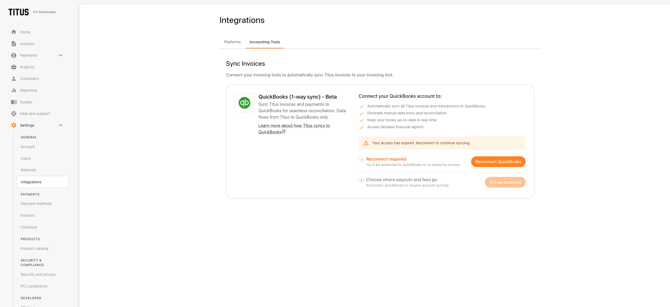
When you reconnect, Titus will sync records based on the eligibility outlined above. Records that have been previously synced will not result in duplicate records in QuickBooks.
If your QuickBooks account is stating a connection issue, you can try one of the following.
- Turn off VPN/ad blockers
- Try opening in an Incognito/Private window
- Try a different browser (Chrome preferred)
- Log out and back into QuickBooks, then reconnect
- Confirm you are a QuickBooks Admin of the business
No. This integration is for QuickBooks Online only.
Support and feedback
QuickBooks Sync is now available. If you notice anything unexpected or have feedback, please reach out to us at support@gotitus.com.