
Follow these steps to keep your QuickBooks P&L accurate:
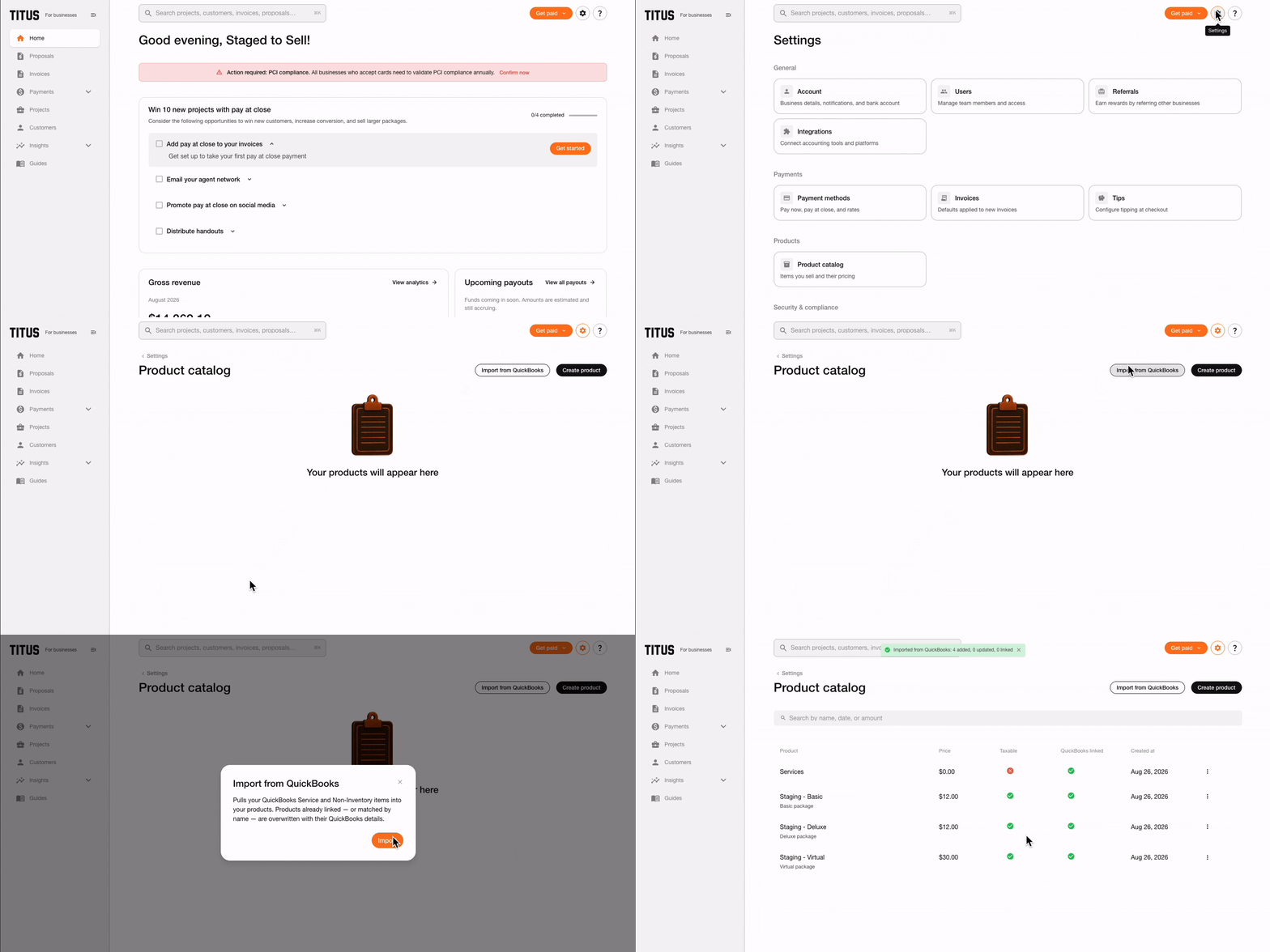
1 - Import your items from QuickBooks
Do this once to get set up.
- Go to Settings → Product catalog.
- Click Import from QuickBooks.
- Confirm.
2 - Add a product to a proposal or invoice
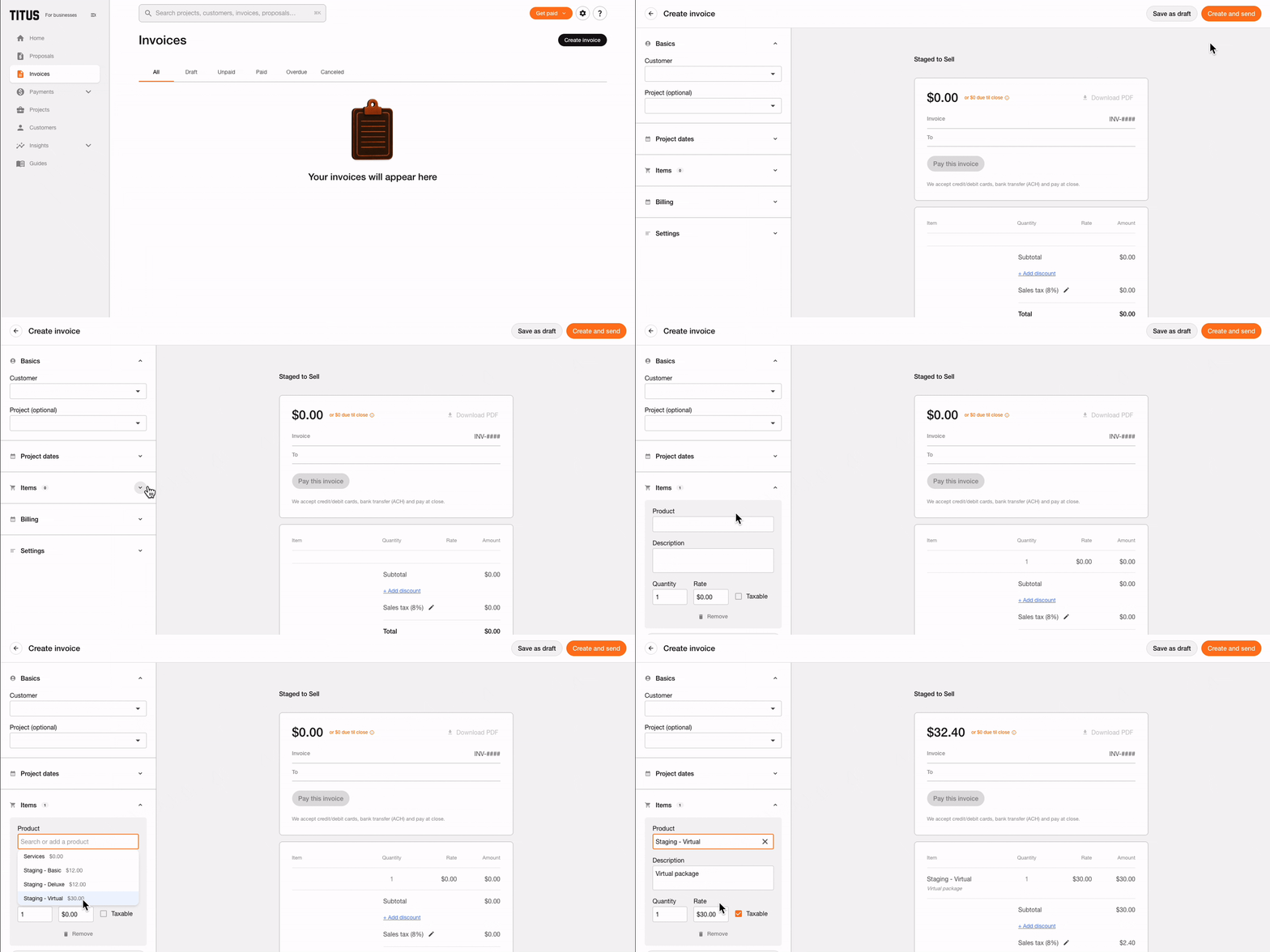
Imported products from QB can now be used in invoices and proposals.
- Create Invoice → Add line item
- Select the product from the dropdown.
3 - Unblock an invoice
aIf a line item isn't linked to QuickBooks, the invoice can't sync. Link it to fix:
- Open the blocked invoice.
- Pick the matching QuickBooks item for the flagged line.
- Sync.
.gif?width=596&height=299&name=Screen%20Recording%202026-08-26%20at%206.52.32%20PM%20(2).gif)
Support and feedback
QuickBooks Sync is now available. If you notice anything unexpected or have feedback, please reach out to us at support@gotitus.com.